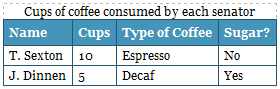
Below is an example of a table with accessibility attributes set for table and cells. First, a screen shot of how the table will appear to those who visually can see it on the screen. It is easy to see that J. Dinnen takes sugar in his coffee. Shown beneath is the HTML code generated when the Editor summarized the table. In the example below, the Scope option has been set to identify each column in the table. The table also has a summary text. The accessibility settings are entered under the Table Cell Properties option in the Editor toolbar. This is a simple example, but the solution can also be used for more advanced tables with for example double headers.
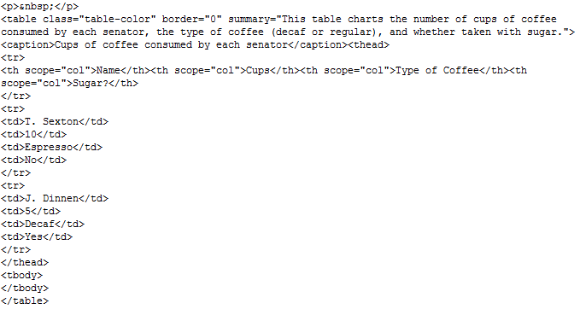
A speech synthesizer might read the text in this table as follows:
Header: Cups of coffee consumed by each senator
Summary: This table charts the number of cups of coffee consumed by each senator, the type of coffee (decaf or regular), and whether taken with sugar.
Name: T. Sexton, Cups: 10, Type of coffee: Espresso, Sugar: No
Name: J. Dinnen, Cups: 5, Type of coffee: Decaf, Sugar: Yes
If the Editor had not set attributes for the cells, the speech synthesizer would not understand that each cell belonged to a particular header. It would read each row independently and would have started with the first row: Name, Cups, Type of Coffee, Sugar. Then it would have gone to the next row and read T. Sexton, 10, Espresso, No. It makes it almost impossible to understand a data table using accessibility tools if it has not been accessibility adapted and if these attributes have not been set.
Last updated: 2011-03-25 | Copyright © EPiServer AB