
 Install Google Tag Manager
InsiteCommerce business users have the option to install either basic Google Analytics or a Google Tag Manager container on their various websites and domains by using three simple Website Settings. The steps to install Google Tag Manager are below.
Locate the Google Tag Manager container ID
Using the out-of-the-box Google Tag Manager implementation will allow you to provide the unique Google Tag Manager Container ID (often referred to as a "GTM ID") and the domains in which you want that tracker installed, and InsiteCommerce will place the Google Tag Manager snippet with your provided GTM ID in the correct location across all pages on your site, as well as install the data layer for future use. If you are having trouble locating your container ID, see the Google Support article.
Changing the websites settings in the admin console
- Go to Admin Console > Websites.
- Locate the website you'd like to enable Google Analytics
- Click Edit.
- Click the Settings finger tab.
- Use the search box to filter the settings for "Google". The following three settings will be provided:
Configure tags, triggers, and variables in Google Tag Manager
|
Name |
Value |
|---|---|
|
Google_TrackedDomains |
A list of domain names for which Google Tracking is enabled. While this could be for any account, it is normally set for InsiteAnalytics purposes. Be sure to include the fully qualified domain, which is anything between the https:// and the next /. For example, www.mydomain.com. |
|
Google_TrackingId |
Either the UA ID of the Google Analytics tracker you'd like to install, or the GTM ID of the Google Tag Manager Container you'd like to install |
|
Google_TrackingType |
Either 'GoogleAnalytics' or 'GoogleTagManager' (without quotes) depending on which tracker you have decided on using (see Google_TrackingId above) |
The following will explain the tags, triggers, and variables InsiteCommerce uses and how you can configure it in Google Tag Manager.
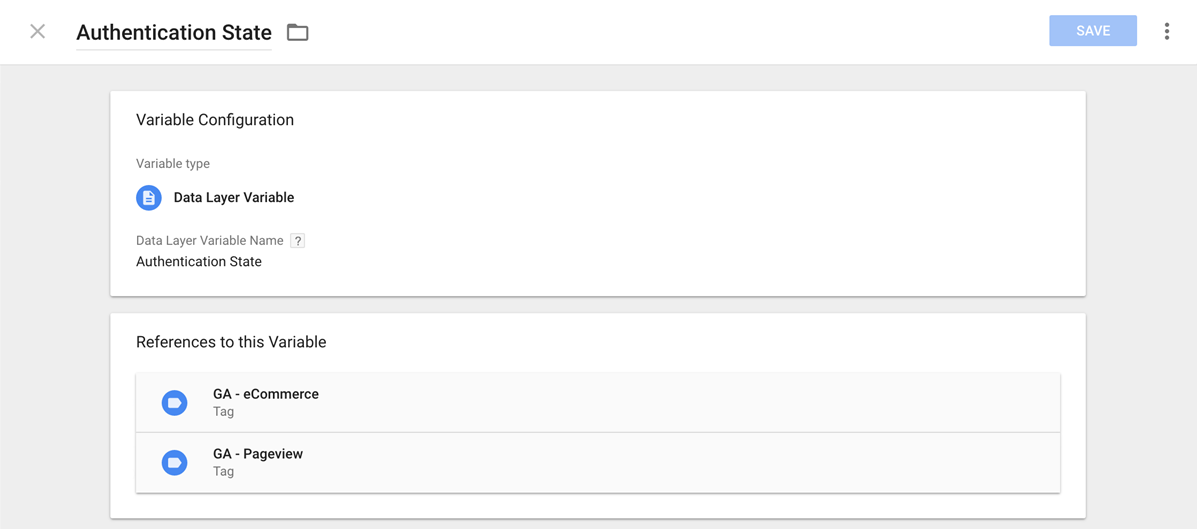
Variable - Authentication State
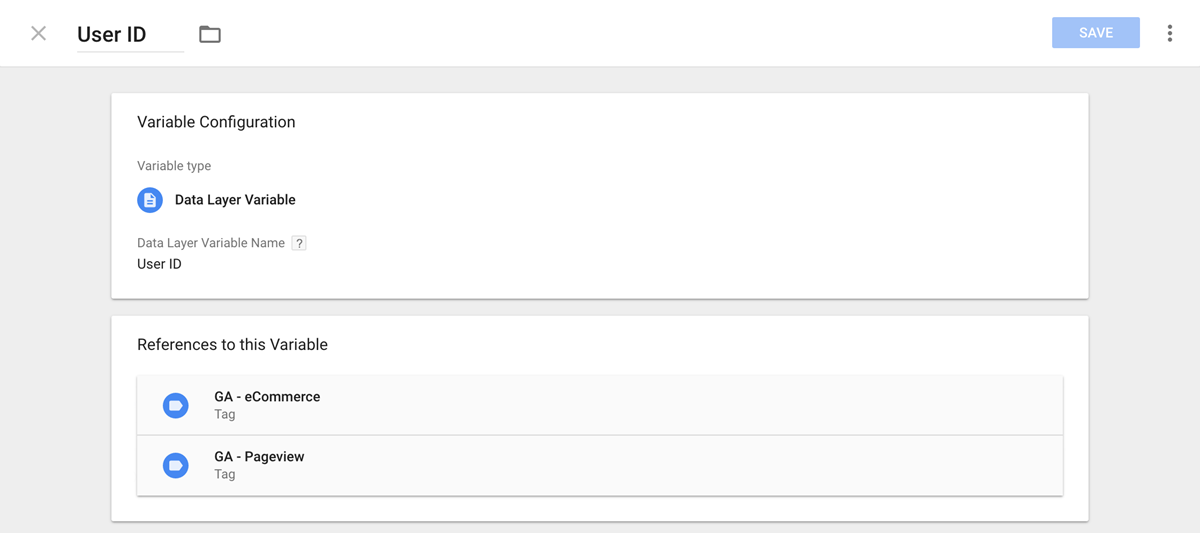
Variable - User ID
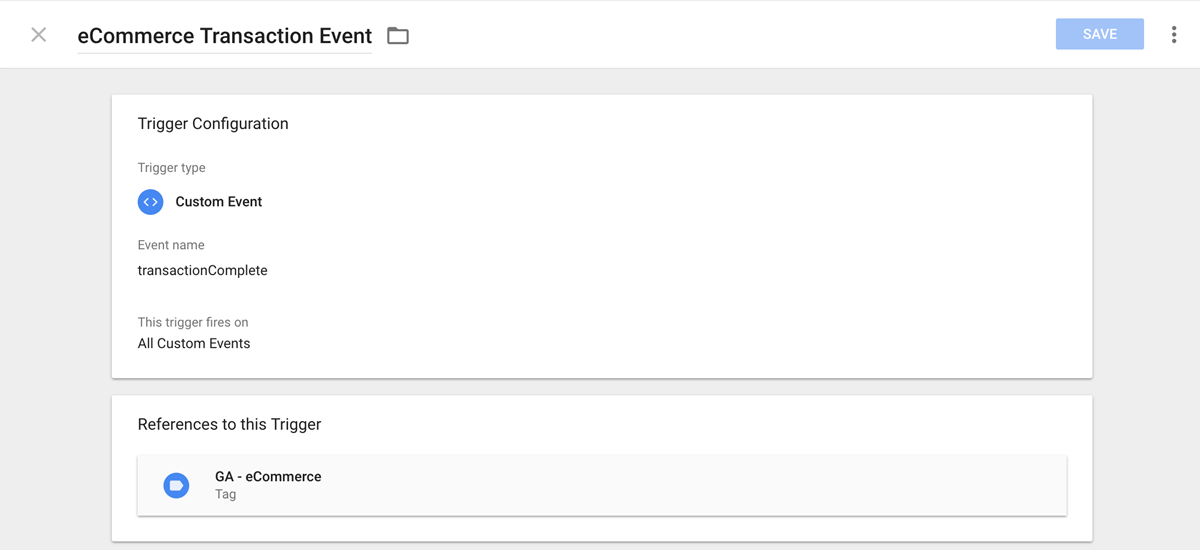
Trigger - eCommerce Transaction Event
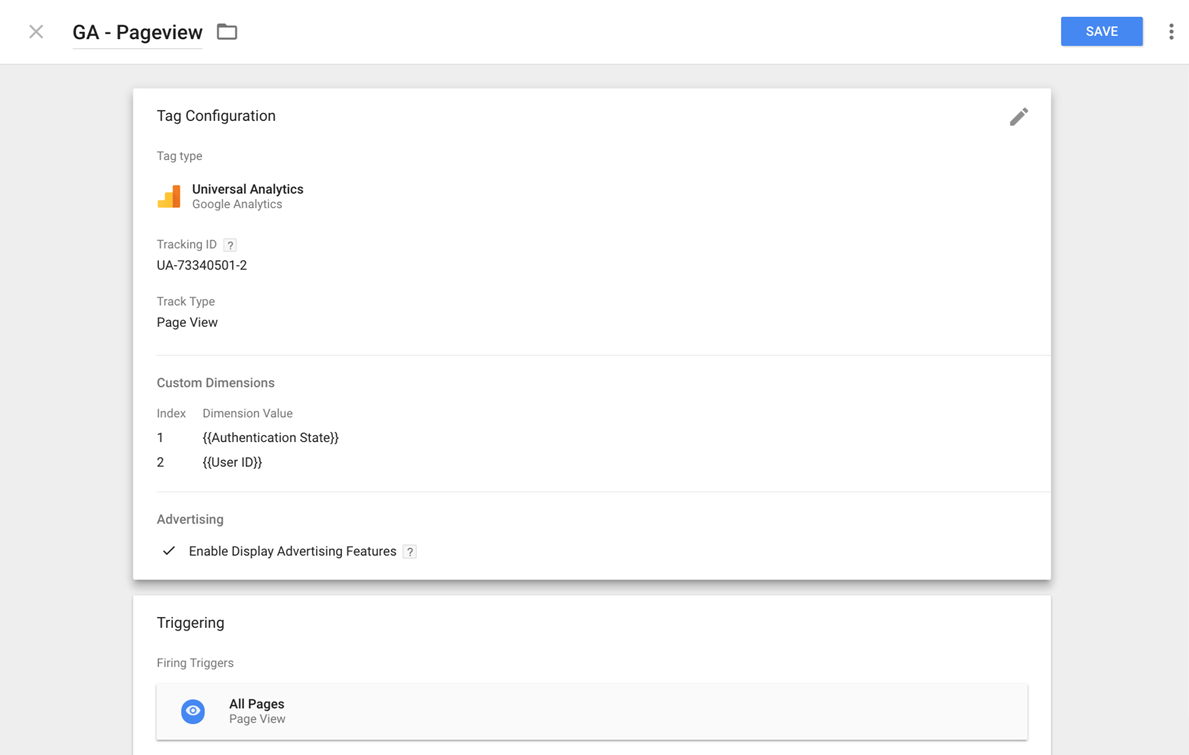
Tag - Google Analytics Pageview
Replace the Tracking ID with your own Google Analytics UA ID
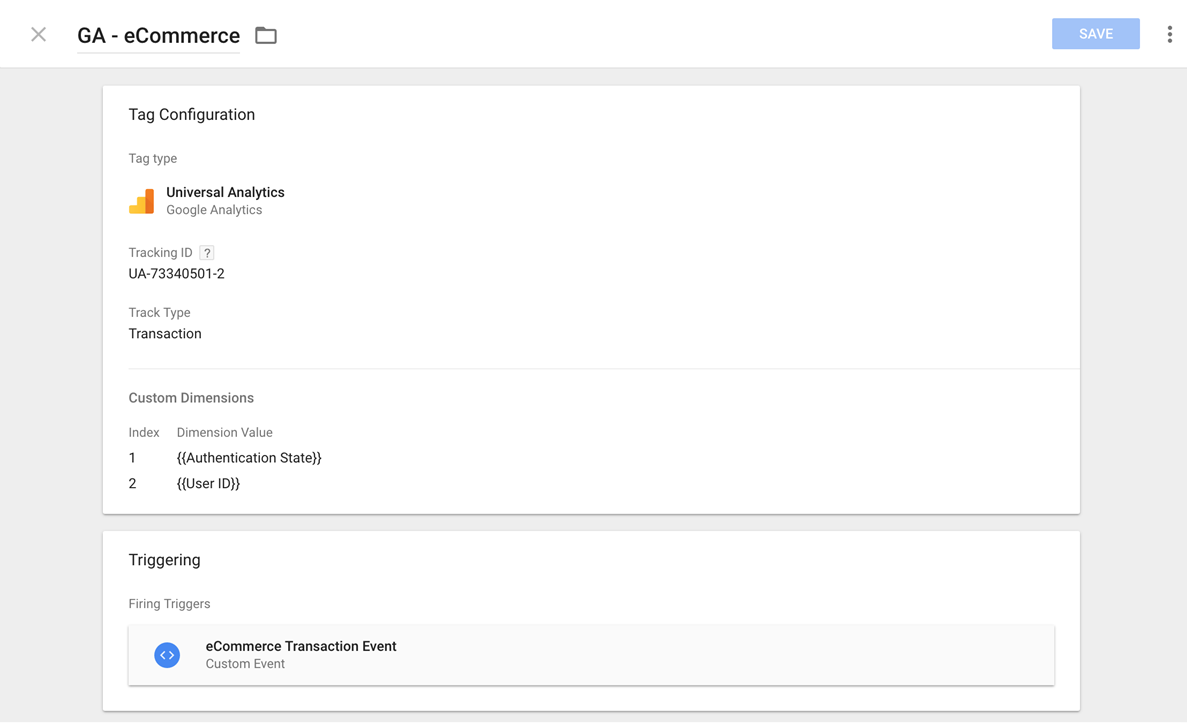
Tag - Google Analytics eCommerce
Replace the Tracking ID with your own Google Analytics UA ID
Enable applicable settings in Google Analytics
To capture the eCommerce data, as well as the Custom Dimensions, you will need to enable both in the settings of Google Analytics.
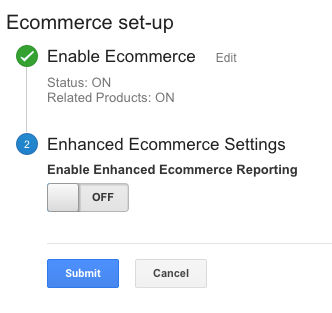
Enabling eCommerce in Google Analytics
Log into the applicable Google Analytics view you are using, and go to the Admin panel. Under the Ecommerce Settings turn on the Status slider under Enable Ecommerce. You may leave the remaining options off. You will need to repeat this step for all views you wish to capture eCommerce data.
Enabling Custom Dimensions in Google Analytics
To capture and use Custom Dimensions in Google Analytics reporting, you must first enable them on the Google Analytics Property settings. To do so, go to the Custom Definitions > Custom Dimensions section of the Property Settings in Google Analytics.
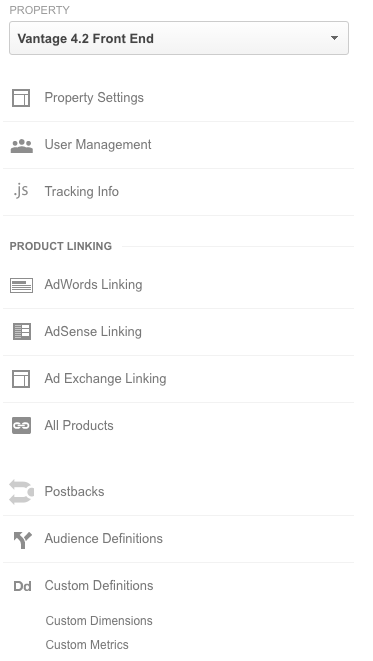
Add both Custom Dimensions with the scope of Hit.
The Index number of both of your Custom Dimensions, and ensure they align with how they are configured on your Google Analytics tag inside Google Tag Manager.

Optional: Site Search Tracking
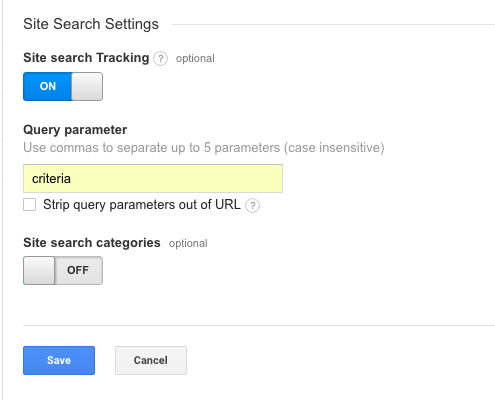
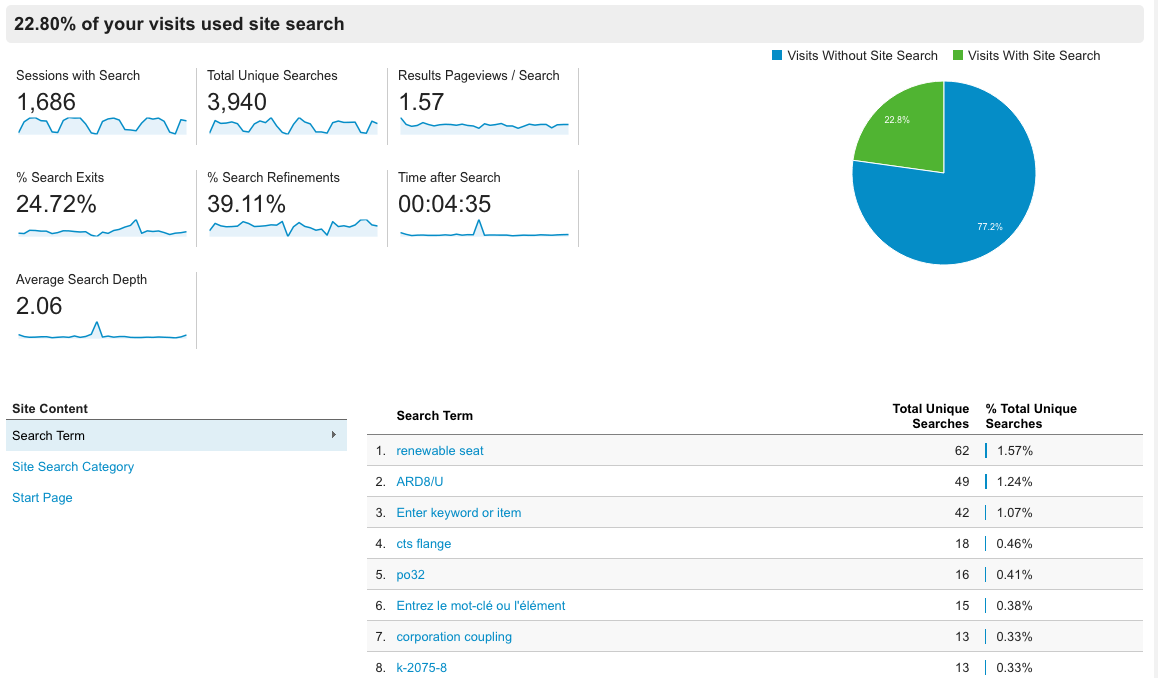
Optionally, you may also choose to enable Site Search Tracking in Google Analytics. Site Search Tracking lets you understand visitor engagement metrics regarding the search box on your site. Metrics such as percentage of sessions with search, all keywords that have been searched and more are captured with this setting enabled.
To enable this, go to the View Settings in the Google Analytics View you are using on your InsiteCommerce website. Scroll to the bottom of the page, use the slider to turn on the Site search Tracking option, and enter criteria as the Query parameter. Be sure to Save your changes. You will need to repeat this process for all Views you wish to capture Site Search data for.
Example of the Google Analytics Site Search Tracking Reports:
 Need help?